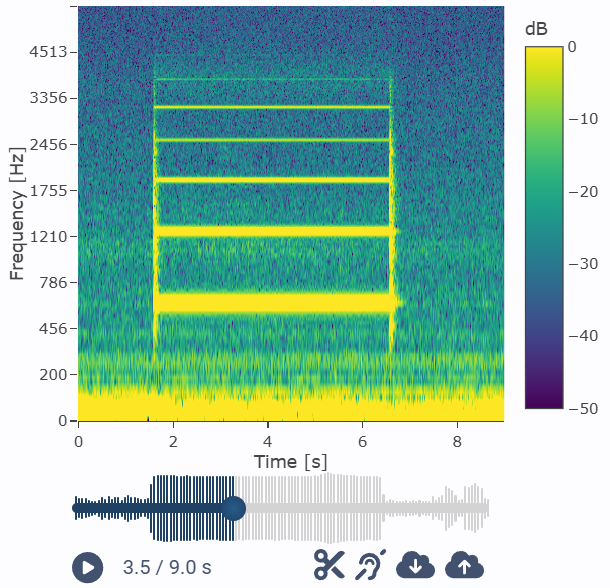
The spectrogram window displays frequency distribution as a function of time or a time-resolved map of frequency content. It uses Fast Fourier Transform to calculate the values as basis for displaying the results.
The spectrogram depends on a handful of parameters that will change how it looks and what it reveals.
It is required to have Analyze mode to enable this window.
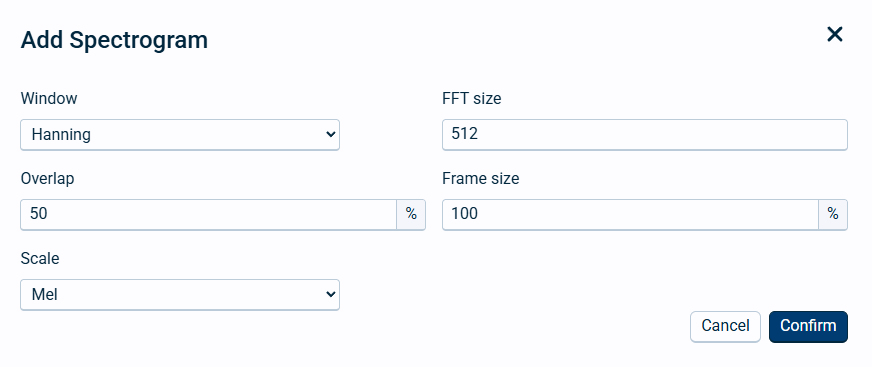
The different parameters are explained below:
Field name |
Optional / Required |
Data in field |
Information |
|---|---|---|---|
Window |
Required |
|
To prevent spectral leakage due to frames not being perfectly periodic, you may choose other windows than rectangular to present the results. Choose from Hanning, Hamming, Blackman or Rectangular. Default and recommended window is Hanning. |
FFT size |
Required |
Number of samples |
This is the number of samples used in each FFT block. It controls the frequency and time resolution. If you have a large window (e.g., 4096 samples) you get a good frequency resolution, but poor time resolution. If you have a small window (e.g., 256 samples) you will get a poor frequency resolution, but a good time resolution. Default value is 512 samples. |
Overlap |
Required |
|
This is how much each FFT window overlaps with the next given in percentage. Higher overlap will give a smoother spectrogram and a lower overlap will give a faster computation, but more "blocky" look. Default value is 50 % overlap. |
Frame size |
Required |
Percentage of FFT size |
This is the length of the window taken from the signal before applying the FFT. It controls how much of the signal is analyzed per step. A larger frame captures more time context. |
Scale |
Required |
|
Mel - This is a perceptual scale Log - Logarithmic will give more details in low frequencies. Linear - This will have equal spacing for the values. |
Please note that a spectrogram requires a marker table window to be able to show results from audio recordings. It will replace the normal audio player in the bottom right corner.
Click on a recording from a marker window to show the spectrogram for that recording. Below is an example of a spectrogram with the default parameters for a 630 Hz tone. The controls are the same as for the normal audio player.