Here you can set up periods, corrections and alarms for Dose values.
Click on the  icon in the left menu to open the Special functions menu and then select Dose setup:
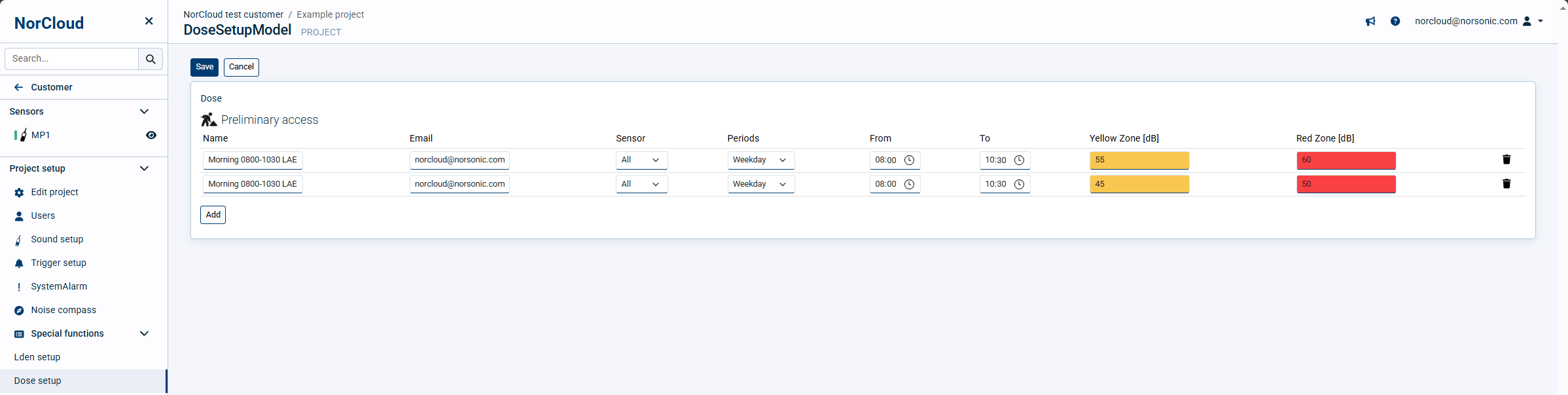
The following settings are available under Dose:
Field name |
Optional / Required |
Data in field |
Information |
|---|---|---|---|
Name |
Required |
Text |
Choose a name for the Dose setup |
Optional |
Valid email addresses |
If limits in yellow or red zones are exceeded, an email will be sent to the email addresses here. Separate multiple addresses with comma or space. |
|
Sensor |
Required |
All or one specific |
Choose from one of the sensors |
Weekdays |
Required |
Days and day period |
Select between Weekday, Saturday or Sunday. |
From, To |
Required |
Time |
This is the time from and to for the Dose to be calculated. |
Yellow Zone |
Optional |
Number |
Indicator line in the graph view to show as yellow and at the given level. If zero, no line will be shown. It is also the limit for which an alarm will be sent. |
Red Zone |
Optional |
Number |
Indicator line in the graph view to show as red and at the given level. If zero, no line will be shown. It is also the limit for which an alarm will be sent. |
Prediction window |
Optional |
No prediction or a specified time span |
If this is set to a specified time span, dose will calculate what the dB-value will be at the end of the specified timeperiod From, To. The time span is how long backwards it will use data for this calculation, e.g., 15 minutes will use the last 15 minutes values to predict what the end dB level will be. In the graph view, the predicted values will be seen as dashed line continuing forward in time. |
Use the  icon to delete a dose single line row setup.
When a Dose setup is enabled you can create a data view in order to view them in the graph.
It is possible to have two overlapping dose calculations.
Click “Save” to store the input. “Cancel” will exit without saving.