The L(f) graph window will present a graphical representation of the frequency contents of the measurement. It is required to have Analyze mode to enable this window. This example shows 1/3-octave band.
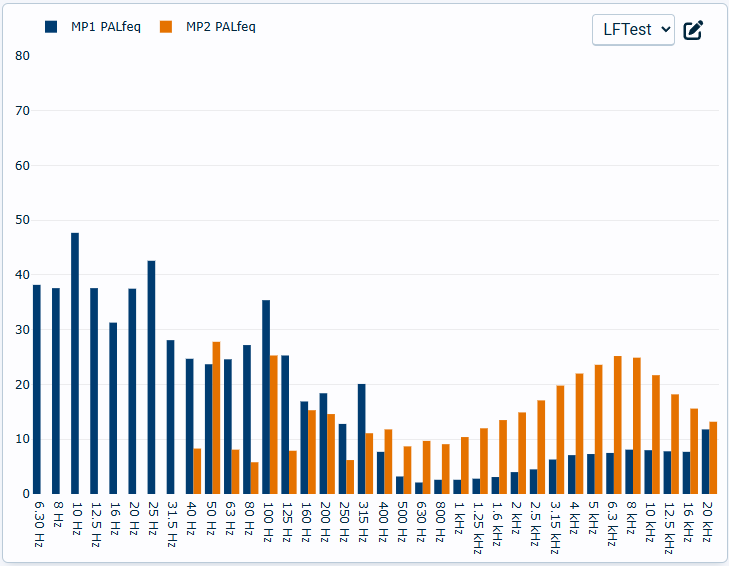
Level-frequency graph window
Pressing the  icon will enter setup mode for the graph window:
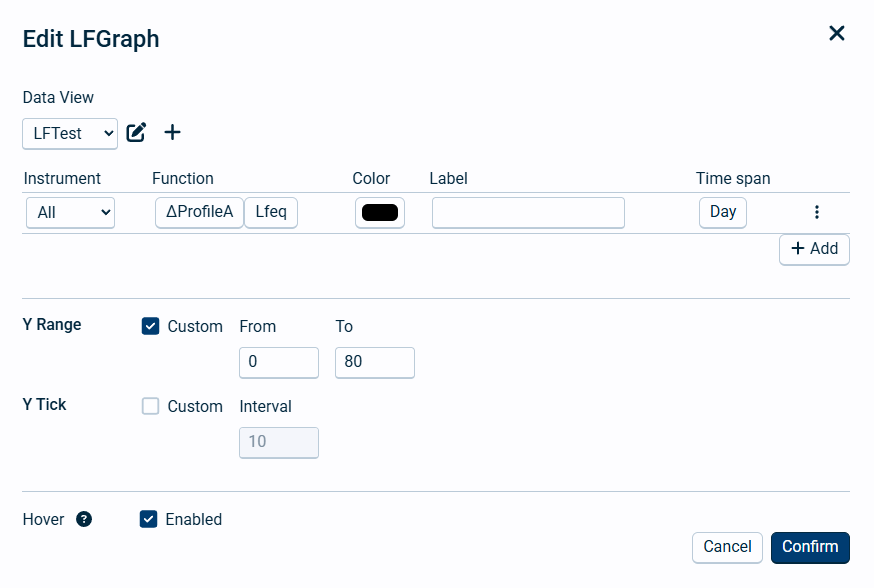
Edit Level-frequency graph window
Most of the possible selections here are similar to the edit level-time graph window and are described there. Please note that you can only select frequency functions that has to be enabled in the sound setup.
At the bottom, the Hover button will decide whether to show the mean of frequencies for the whole time period selected or hovering the cursor in the level-time graph.
Please note that only having a L(f) graph window without a L(t) graph will make the hovering not work.