The Image viewer supports a collage of several images placed to present whatever that needs to be illustrated. It also supports placing instruments for indicating the location of them and hovering to display the sound level of the instruments.
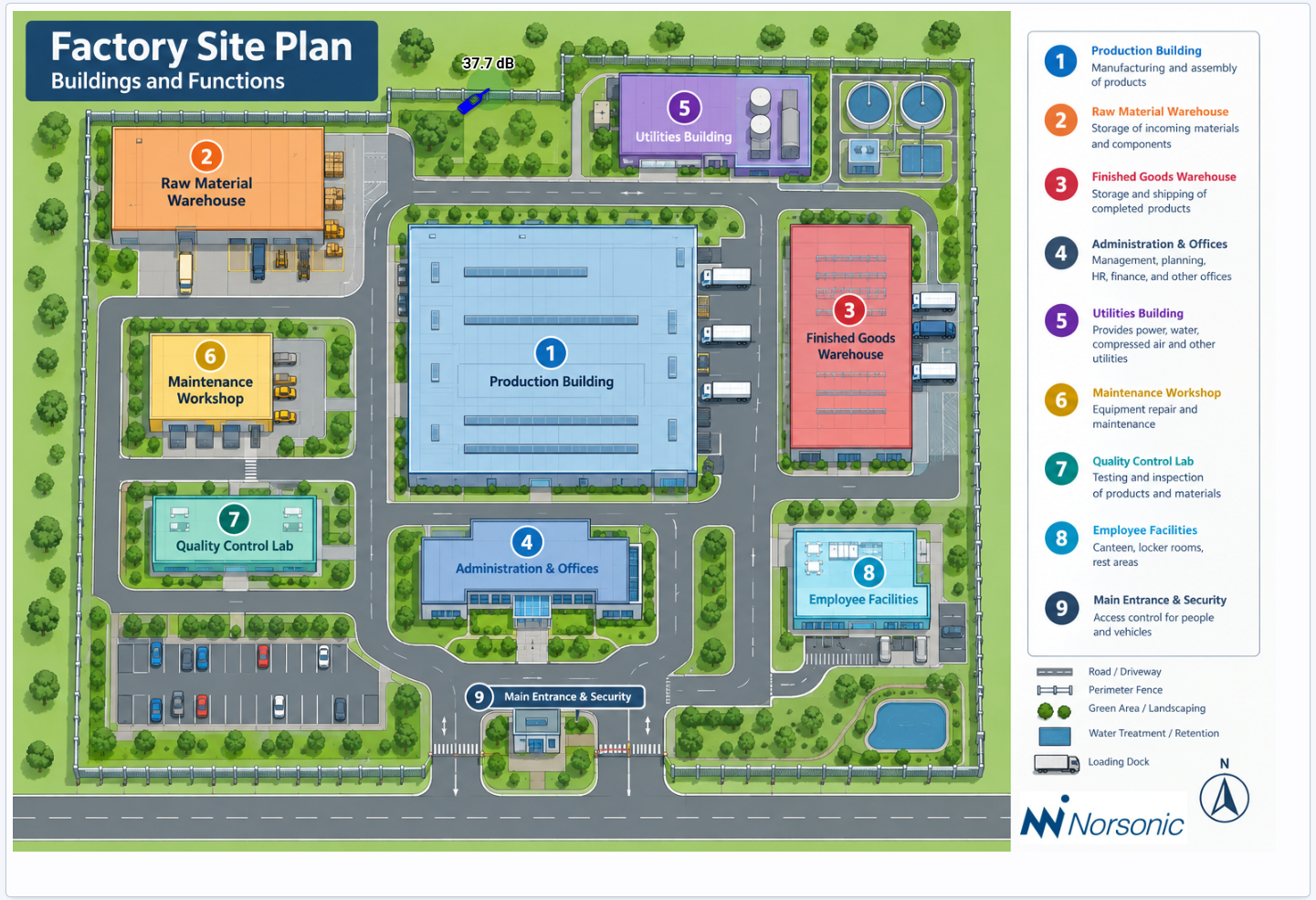
Example of a image viewer showing a factory plan and the placement of a measurement instrument.
Images can be organized on top of each other in what order the user must desire. Use the component list to add or reorder the images.
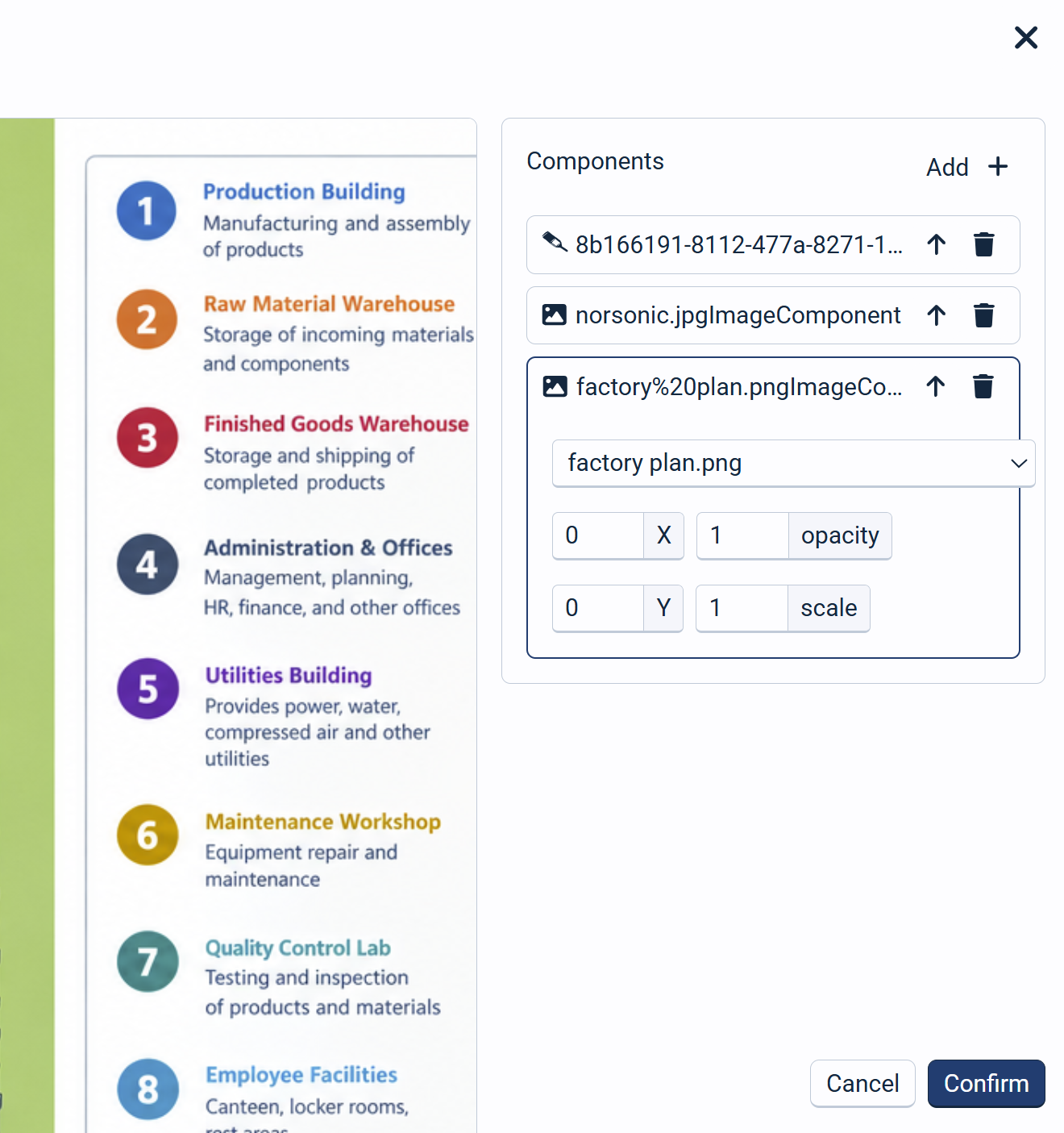
In the image component list, each image has some editable parameters:
•X and Y - This is the position of the image in the window. 0,0 being top left.
•Opacity - This sets the transparency of the image, 0 being completely transparent and 1 being not transparent at all.
•Scale - You may alter the size of the image with the scale parameter. 1 is 100 %, 2 is 200 % or twice the original size, 0.5 is 50 % or half the original size.
Supported image types are:
•Instrument - This is an image representing the instrument with the corresponding color. It will also support displaying the sound level from the L(t) graph when hovering.
•Uploaded image - This is an image that has been uploaded in the report designer.
•External image - This is a hyperlink to an external image. Type the link address to the picture here.
•Marker image - When clicking on a marker photo, this photo will be displayed here. Otherwise the image component will be empty.