Please note that two factor authentication is required to access NorCloud. We recommend using Microsoft Authenticator from Google Play or Apple App Store.
Log in to NorCloud by visiting https://norcloud.norsonic.com
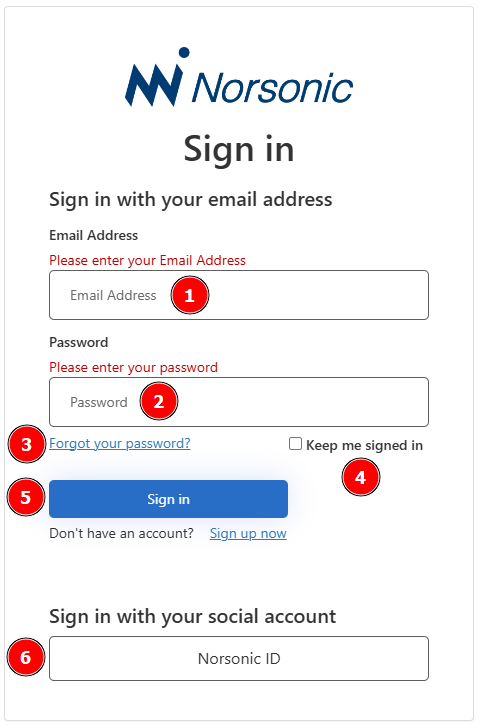
Log in to NorCloud
Here you are asked to type in your login details:
1.Email Address (registered email address)
2.Password (your personal password)
3.Forgot your password? You are also given the option to create a new password if you have forgotten your old password or just want to make a new one for security reasons.
4.Keep me signed in will not ask you to log in until two factor authentication expires or browser data is deleted.
5.Sign in, press this button when you have finished entering your credentials. (Sign up now will not work.)
6.Sign in with your social account. This is only for Norsonic internal use.
Log in will direct you to the level where your user have been created; Customer level or Project level.
If you are a first time user and your email has just been added, please follow these steps:
1.Enter your email to find the Welcome to NorCloud email. Go to NorCloud by visiting https://norcloud.norsonic.com.
2.Click on the "Forgot your password?" link.
3.Send the verification code to your email.
4.Go back to your email and find the verification code.
5.Go back to NorCloud, enter the verification code and press Verify code.
6.Ensure email is correct and press Continue.
7.Add two-factor authentication by follow the instructions given and scanning the QR-code.
8.Enter the code from the Authenticator app.
9.Enter the new password you want and confirm it.
10.Now you should be logged into NorCloud.